
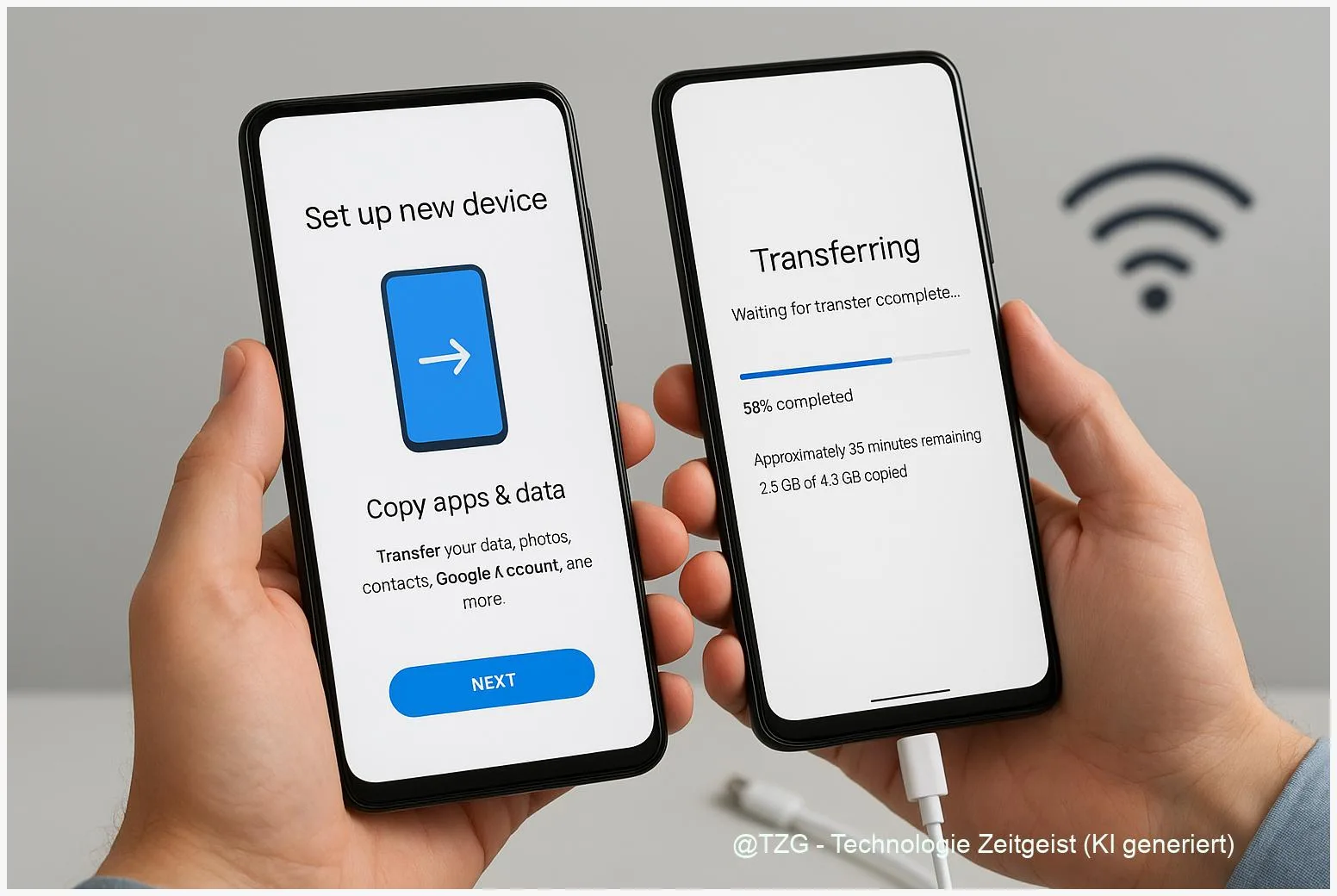
A new phone should feel exciting, not risky. This guide shows how to do Android data transfer to a new phone so your contacts, photos, apps, and key settings arrive safely. You’ll learn what Android can copy during setup (with a cable, Wi‑Fi, or a cloud backup), what typically doesn’t move automatically, and how to verify everything after the switch.
Introduction
Most people don’t switch phones because they want a new setup project. They switch because the battery is fading, storage is full, the camera matters, or the old device finally broke. The tricky part is not the hardware—it’s the small things: saved Wi‑Fi networks, messaging history, app logins, photos from years ago, and the settings you don’t even remember changing.
Modern Android makes moving much easier than it used to be. During the initial setup, you can copy data directly from your old phone (usually the most complete method), or restore from a Google backup if the old device isn’t available. The steps below keep it practical: what to check first, what to tap during setup, and how to handle the few items that almost always need manual attention.
Basics and Overview: Android data transfer to a new phone
Android offers two main ways to move to a new device: device-to-device transfer during setup (over a cable or Wi‑Fi) and cloud restore from a Google backup (often called Google One backup). Device-to-device transfer usually copies more in one go, because the old phone can hand over local data directly.
Important terms you’ll see on screen:
Google backup (Google One backup) is a backup stored in your Google account. It can include things like installed apps (from Google Play), call history on some devices, device settings, and SMS/MMS on many Android phones—depending on model and apps. Sync (for example, contacts and calendars) means the data is already stored in your account and will reappear once you sign in.
The safest mindset is: transfer first, then verify—because not every app stores data in the same way.
Also worth knowing: not everything is transferable by design. Downloads folders, some hidden app files, and many apps installed outside Google Play may need manual work. That’s normal, and planning for it prevents surprises.
| Option or Variant | Description | Suitable for |
|---|---|---|
| Cable transfer during setup | Connect phones with USB‑C (or adapter) and copy apps, settings, and media directly. | Most people; fastest and usually most complete. |
| Google backup restore | Sign in and restore from a cloud backup if the old phone isn’t available or transfer fails. | Fallback option; good when the old phone is lost or broken. |
Preparation and Prerequisites
Good transfers are mostly about preparation. Take ten minutes to reduce the chance of missing data or getting stuck mid-setup.
Before you start, check these basics:
- Charge both phones to at least 50 % (more is better).
- Have stable Wi‑Fi ready. Even with a cable, Android may download apps again from Google Play.
- Know your screen lock (PIN/pattern/password) for the old phone. You may be asked to confirm it.
- Update the old phone (Settings > System > System update). Transfers are often smoother on updated software.
- Check Google backup: Settings > Google > Backup. Make sure backup is on and recent.
Do a quick “what could be special” checklist:
- 2-step verification apps (authenticator) and banking apps may require reactivation on the new device.
- End-to-end encrypted chats often require an in-app migration or cloud backup inside the messaging app.
- eSIM may need activation steps from your carrier; keep the old phone available until service works on the new one.
If you want a privacy-focused approach, plan to copy only what you need. Android lets you deselect categories during transfer and keep the rest as a cloud sync (contacts, calendars) after sign-in.
Step-by-Step Instruction
The most reliable moment to move data is the initial setup of the new Android phone. The wording varies by brand, but you’ll typically see options like “Copy apps & data” or “Bring your data”.
- Start the new phone, choose language/region, and connect to Wi‑Fi when asked.
- On the data transfer screen, choose the option to copy from an Android phone (often “Copy apps & data”).
- Connect the phones:
- Preferred: USB‑C cable (or USB‑C to USB‑A with an adapter if needed).
- Alternative: wireless transfer over Wi‑Fi, if offered on your devices.
- Confirm the pairing. You may see a code on the new phone and a prompt on the old phone to approve. Follow the on-screen security prompts.
- Select what to copy. Typical categories include apps, photos/videos, contacts, SMS/MMS, and device settings. If storage on the new phone is tight, deselect large media and rely on Google Photos sync instead.
- Sign in to your Google account on the new phone when prompted. This helps re-download apps and restore backed-up settings.
- Wait for the transfer to finish. Keep both phones awake and connected. Larger photo libraries can take a while.
- Finish setup (screen lock, fingerprint/face unlock, Google services). Then let the phone sit on Wi‑Fi for a bit so apps can restore in the background.
- Verify the essentials: open Photos, Messages, Contacts, and a few key apps. Confirm that your main accounts are signed in and notifications work.
If your old phone is not available, choose restore from a Google backup during setup instead. You’ll sign in to the same Google account, pick the latest backup, and Android will restore what’s available from the cloud.
Tips, Troubleshooting, and Variants
If something goes wrong, it’s usually one of a few predictable causes. These fixes stay useful across Android brands and versions.
Common issues and quick fixes:
- Transfer fails or stalls: restart both phones, try a different cable/adapter, and keep them plugged in. If wireless transfer is unstable, switch to a cable method if possible.
- Some apps are missing: apps installed from outside Google Play may not restore automatically. Reinstall them from the official source and sign in again.
- Photos appear “empty” at first: open Google Photos, make sure you’re signed into the right Google account, and check that “Backup” is enabled in Photos settings. Cloud libraries may need time to index and show thumbnails.
- SMS/messages didn’t move: message restore depends on the default messaging app and device support. As a fallback, ensure Google backup is on and try restoring from the latest backup during setup.
- Two-factor codes stop working: authenticator apps and security keys may require re-linking. Keep the old phone until you can confirm logins for email, banking, and social accounts.
Useful variants:
- Pixel-specific “Copy data after setup”: some Pixel models allow copying data later from settings. Many other devices require a factory reset if you skipped transfer during setup.
- Photos-first strategy: if media is your biggest data chunk, rely on Google Photos backup/sync and only copy apps and settings during setup. This keeps the transfer quicker and reduces storage surprises.
Privacy and security note: transfers can include sensitive information (messages, accounts, Wi‑Fi). Do the process on trusted Wi‑Fi, keep the phones in your control, and enable a strong screen lock on the new device right away.
Conclusion
Setting up a new Android phone is easiest when you treat it like a controlled handover: prepare a recent Google backup, use a cable transfer during setup when you can, and then verify the few areas that tend to differ across apps. Once contacts, photos, messages, and your key apps look right, you can fine-tune settings at your own pace—without worrying that something important was left behind. Keep the old phone for a day or two as a safety net, especially for banking and authentication.
Which step caused the most friction on your last phone switch—photos, messages, or app logins? Share your experience and help other readers avoid the same pitfall.




Leave a Reply